
A Christmas train on your Mac desktop: a little toy train that comes by in the snow
Short answer
KoiArt has a little Christmas train that rolls along the bottom of your Mac's screen while it snows. To see it now, click the snowflake in the menu bar and pick Send train. To have it come by on its own, open Settings, click the arrow next to Visitors and switch on The train. It's off until you turn it on. The same train also takes snowmen, trees and notes to your friends' Macs.
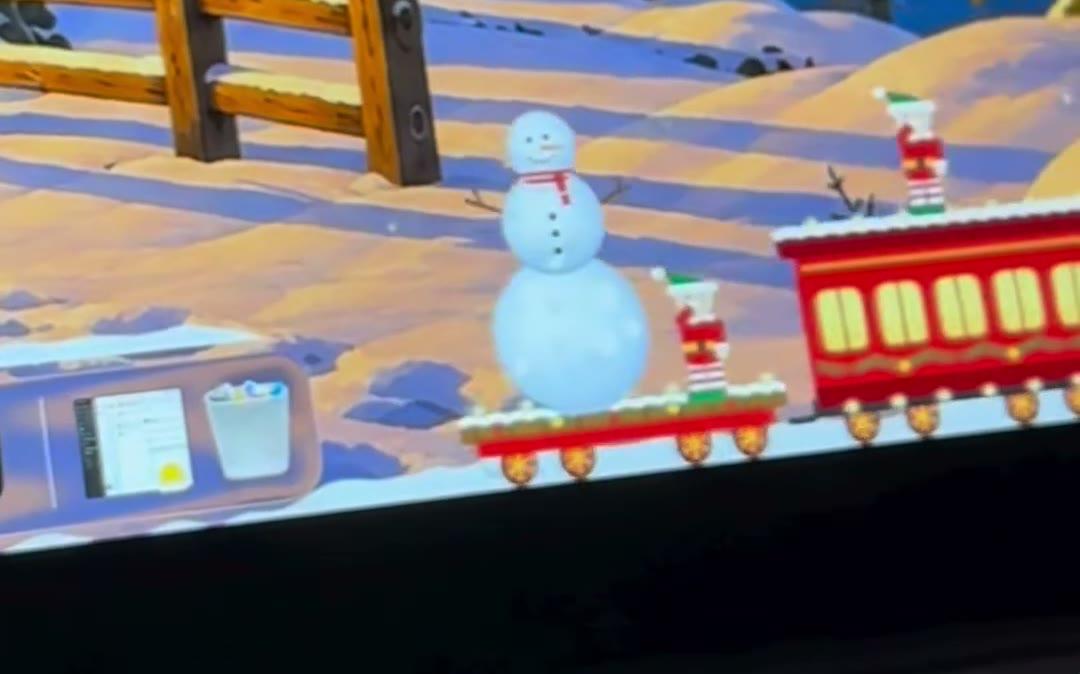
How to see the train now
- Turn on Snow. The train only runs in snow.
- Click the snowflake in the menu bar at the top of your screen.
- Pick Send train.
- Look at the bottom of your screen. The train rolls in and goes straight across.
Let it come by on its own
- Open KoiArt and go to Settings.
- Find Visitors and click the little arrow next to it to see the list.
- Switch on The train.
What you see when it comes by
Once it's on, the train comes by every few hours while it snows, empty and without stopping. If a friend's gift is waiting, that train comes instead. Got more than one screen? It goes through each of them, top to bottom. Turn off Visitors travel across all screens in Settings to keep it on your main screen.
- A steam engine with a wreath, a glowing lamp and a chimney puffing smoke. Its wheels turn as it goes.
- A red coach and a green coach with warm lit windows, a garland and string lights that twinkle.
- A flat car at the back for gifts.
- An elf riding on the roof, waving.
- Your pointer goes straight through it, so it never blocks a click. If Santa runs by at the same time, he jumps over it.
Send a snowman, a tree or a note by train
Click a snowman or a tree you made and press Send to a friend, or pick Send a train to a friend in the menu. The train pulls in empty and stops, the elf hops off, and its speech bubble asks what to send. Click a snowman or a tree and the elf walks over, picks it up and puts it on the flat car. Nothing built yet? The elf waits while you build one.
Send a snowman and the Yeti runs after the train, throws two snowballs and misses. It can't keep up.
On your friend's Mac, the train stops, the elf puts your gift down on the ground and hops back on. Just a note? The train doesn't stop: the elf tosses the letter off the roof, and it waits on the ground to be clicked. Invites, notes and when it arrives are all in send a Christmas surprise to a friend's Mac.
Trains between your own Macs
Have your KoiArt key on more than one Mac? Open the Friends tab, give each one a name under Computers on your key, and send trains from one to the other. Build a snowman on the work Mac, and it rolls in on the one at home the next time it snows there. It arrives dressed the same, see how to dress up your snowman.
Questions people ask
Why don't I see Send train in the menu?
Turn on Snow first. The train buttons only show while it snows.
Is the train on all the time?
No. It rolls across and leaves. As a visitor it's off until you switch on The train in Settings.
Does it get in the way?
No. It stays at the bottom of the screen, and every click goes through to your apps.
Does sending a train cost anything?
No. Trains are free once you both have KoiArt.
How much is it?
$9 once for 1 computer, or $12 for 5 computers, Mac or PC. No subscription.